Properties Configuration
Member property configuration defines property attributes, categories, and how properties are mapped, validated, and derived across applications and dimensions. This module provides comprehensive control over member metadata and its behavior throughout the EPMware system.
Overview
The Member Properties module is comprised of the following components:
- Property Categories - Group and organize properties for display
- Property Configuration - Define property attributes and behavior
- Property Mapping - Synchronize properties across applications
- Property Validation - Enforce business rules and data quality
- Property Derivation - Calculate property values dynamically
Property Categories
Property categories group properties for organized display on the Metadata Explorer and Request pages, with advanced filtering capabilities.

Property Categories configuration showing categories by dimension class
Category Configuration
Right-click on a category to configure:

Category Properties dialog with workflow and node filtering options
Key Features
Workflow Filtering
Restrict property categories to specific workflows for better user experience:
Use Cases: - Create Entities Workflow - Show only creation properties - Edit Properties Workflow - Display editable attributes only - Approval Workflow - Include review-specific fields
Workflow Filtering Scope
Workflow filtering applies only to the Request page, not to Metadata Explorer.
Node Level Filtering
Control category visibility based on hierarchy position:
Filtering Options:
| Filter Type | Description | Example |
|---|---|---|
| Base/Parent | Member type filtering | Base members only |
| Generation/Level | Hierarchy depth filtering | Levels 4 and 5 only |
| Specific Nodes | Named member filtering | TB or ALT_TB nodes |
| Custom SQL | Complex logic filtering | Business rule based |
Assigning Properties to Categories
Right-click on a category and select "Assign Properties":

Property assignment dialog for category configuration
Property Configuration
Property configuration defines the attributes for applications imported from target systems or generic applications created in EPMware.
Select and Application, Dimension Class and Category from the dropdown list to view the Properties.

Property Configuration screen showing properties filtered by application, dimension class, and category
Property Attribute Groups
Properties are organized into five main attribute groups:
- General - General attributes
- Defaults - Default values
- Display - Attributes related to the display of the Property
- Deploy - Deployment attributes
- Associations – Associates Properties with Applications and Dimensions
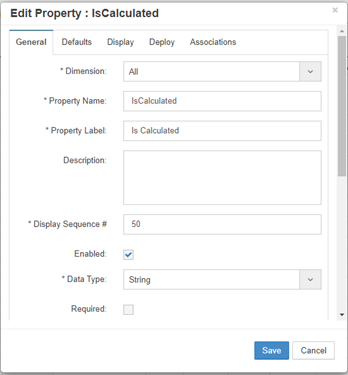
Property configuration tabs showing different attribute groups
1. General Attributes
Configure basic property settings and derived SQL logic:
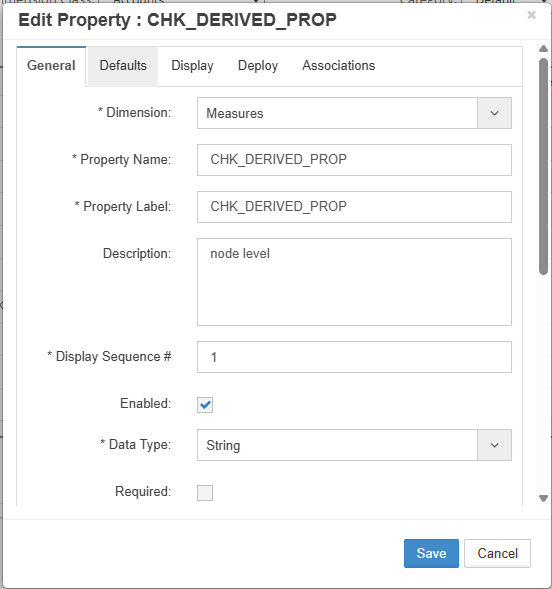
General attribute configuration with conditional logic
| Attribute | Description | Use Case |
|---|---|---|
| Dimension | Dimension to which the property belongs | System reference |
| Property Name | Name of the property | System reference |
| Property Label | User-friendly name | UI display |
| Description | Additional information about the property | Data validation |
| Display Sequence# | Controls the order in which the property is displayed in Metadata Explorer | UI display |
| Data Type | Specifies the type of value stored by the property | Integer,Float,String |
| Required | Indicates whether a value must be provided for the property | User interaction |
| Ancestor Inheritance | Inherits property values from ancestor members in the hierarchy | See Ancestor Inheritance Examples |
| Readonly | Indicates whether the property value can be edited by users | if property is derived type , this flag should be enabled |
| Security Class | Security class assigned to the property | Restricts access to authorized users |
| Maximum Lenght | Maximum number of characters allowed for the property value | Data validation |
| Minimum Lenght | Minimum number of characters required for the property value | Data validation |
| Backup Enabled | Indicates whether property values are included in backup and recovery operations | Data protection and recovery |
| Derived Property | Indicates whether the property value is calculated dynamically | Read-only values |
| Derived SQL | SQL logic used to calculate the derived property value | See Derived SQL Examples |
2. Default Attributes
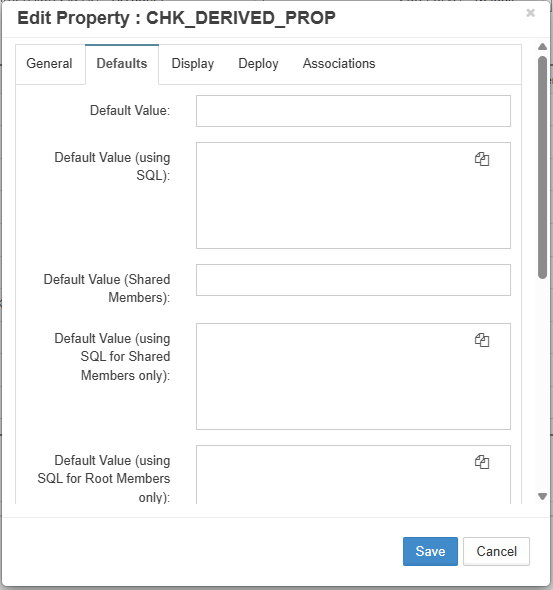
Default attributes configuration with conditional logic
Set default values for new members:
| Setting | Description | Example |
|---|---|---|
| Default Value | Static default value assigned to the property | "Active" |
| Default Value (using SQL) | Assign a default value dynamically using SQL | See Default Value SQL Example |
| Default Value (Shared Members) | Static default value assigned when creating shared members | "Active" |
| Default Value (using SQL for Shared Members only) | Assign a default value to shared members using SQL | More Info |
| Default Value (using SQL for Root Members only): | Assign a default value to members created directly under the root node using SQL | More Info |
| Assign Default value during App Import | Assign default during Application Import | "Active" |
| Default Value during Import: | Default static value during ERP Import | "Active" |
| Import Lookup | Import Lookup | Special handling |
| Inherit Value | Inherit the value from Parent/sibling member | Special handling |
| Inherit Value (Shared Members) | Enable property value inheritance for shared members | Special handling |
3. Display Attributes
Control property visibility and interaction:

Display attributes configuration with conditional logic
| Attribute | Description | Example Use |
|---|---|---|
| Display Type | Specifies how the property is displayed and maintained in the user interface (Text Box, Checkbox, List of Values, etc.) | Text, Checkbox, LOV |
| Display | Determines whether the property is displayed in the user interface | Show/Hide property |
| Display on Create Member Popup | Displays the property on the Create Member popup so users can provide a value during member creation | Capture mandatory attributes during member creation |
| Conditional Display | Enables conditional display of the property based on runtime conditions | Role-based visibility |
| Conditional Display SQL | SQL used to dynamically determine whether the property should be displayed | More Info |
| Conditional Gray Out SQL | SQL used to conditionally make the property read-only | More Info |
| Mask Property Value | Enables masking of property values using Mask SQL | Sensitive information |
| Mask SQL | SQL used to determine whether the property value should be masked | More Info |
| Dynamic Label | Enables dynamic property labels based on runtime conditions | More Info |
| Dynamic Label SQL | SQL used to dynamically determine the property label | More Info |
| Hierarchy Type | Stores property values at the hierarchy level, allowing primary and shared instances of the same member to have different values | Shared member-specific attributes |
| LOV Lookup | Lookup definition used to populate dropdown values for the property | Country, Currency, Status |
| List of Values SQL | SQL used to dynamically populate dropdown values | More Info |
| Checked Value | Value stored when a Checkbox property is selected | Y, TRUE, 1 |
| Unchecked Value | Value stored when a Checkbox property is not selected | N, FALSE, 0 |
| Vary By Dimension | Allows different lookup values to be displayed based on the selected dimension | Dimension-specific dropdown values |
| Vary By Dimension Default Member | Specifies the default member to use when resolving dimension-specific lookup values | Default lookup member |
4. Deploy Attributes
Control deployment behavior:
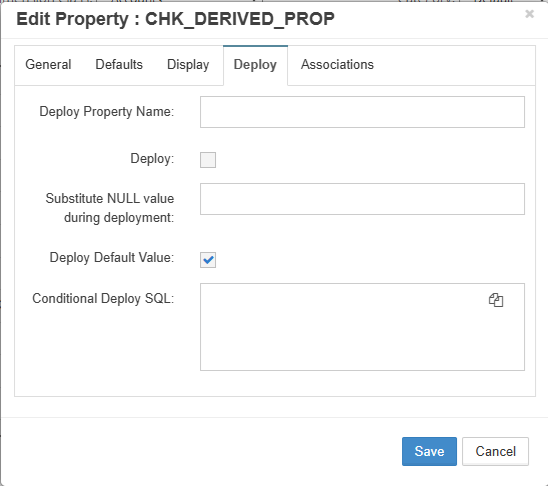
Deploy attributes configuration with conditional logic
| Attribute | Description | Impact |
|---|---|---|
| Deploy Property Name | Property name to be used in the deployment file instead of the EPMware property label | Controls how the property is represented in the target system deployment file |
| Deploy Flag | Indicates whether the property should be included in deployment files | Controls whether the property is deployed to the target system |
| Substitute NULL Value During Deployment | Value to be used in the deployment file when the property value is NULL or blank | Prevents NULL values from being sent to the target system |
| Deploy Default Value | If enabled, the property's default value is included in deployment files when no explicit value exists | Ensures default values are deployed consistently |
| Conditional Deploy SQL | SQL used to determine dynamically whether the property should be included in the deployment file | Enables conditional deployment based on logic, More Info |
5. Associations
Link properties to applications and dimensions:
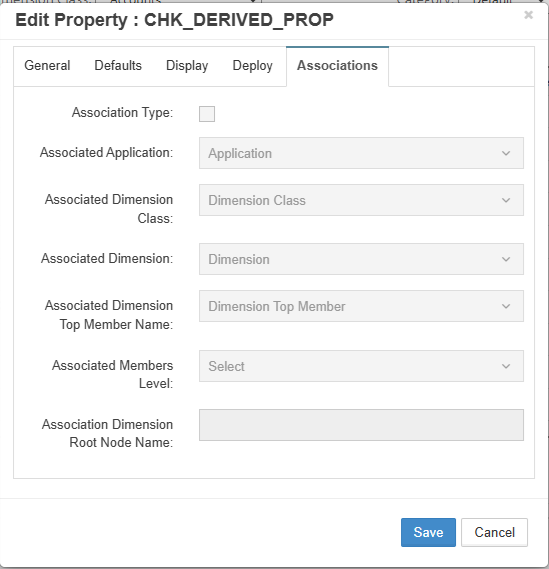
Association attributes configuration
- Application Association - Which applications use this property
- Dimension Association - Which dimensions include this property
- Category Assignment - Property categorization
- Security Class - Access control
Property Mapping
Property mapping synchronizes property values across dimensions in different applications, ensuring data consistency.

Property Mapping configuration showing synchronization across applications
Mapping Configuration
Property maps work in conjunction with dimension mapping to automatically populate shared properties across applications.
Key Concepts
- Property Label - Common identifier across mappings
- Sync Options - Direct sync or script-based transformation
- Reviewer Override - Allow target application reviewers to modify values
- Mapping Direction - One-way or bi-directional sync
Creating Property Maps
- Click the + icon to add a mapping row
- Input a Property Label for reference
- Select properties to map in each application column
- Choose sync option for each property:
- Sync - Direct value copy
- Script - Custom transformation logic
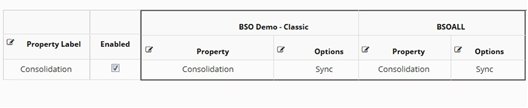
Example: Mapping Consolidation property between BSO Demo Classic and BSOALL
Save Required
Changes are not committed until the Save icon is clicked. Rows are automatically sorted alphabetically after saving.
Request Line Generation
Each mapped property creates a line item in the Request page for applications configured with Sync.
Mapping Best Practices
- Consistent Naming - Use standard property labels across mappings
- Test Scripts - Validate transformation logic in development
- Document Mappings - Maintain mapping documentation
- Monitor Sync - Review sync logs regularly
Property Validation
Property validations provide additional business rule enforcement beyond standard application validations.

Property Validations configuration showing active validation rules
Creating Validations

Create Property Validation dialog with script selection
Configuration Steps:
- Select Application Name
- Select Dimension Name
- Select Property Name to validate
- Choose Validation Script from Logic Builder
- Enable/Disable validation
- Add description for documentation
Multiple Validations
You can assign multiple validation scripts to a single property for comprehensive checking.
Edit Property Validation

Edit Property Validation dialog
Property Derivation
Property derivation automatically calculates property values using Logic Builder scripts.

Property Derivations configuration showing derivation rules
Creating Derivations

Create Derivation dialog with script configuration
Configuration Elements:
- Application Name - Target application
- Dimension Name - Target dimension
- Property Name - Property to derive
- Derivation Script - Logic Builder script
- Enabled - Activate/deactivate derivation
- Description - Documentation
Edit Derivation

Edit Derivation dialog for modifying derivation rules
Script Management
All validation and derivation scripts are created and managed in the Logic Builder module.
Best Practices
1. Property Design
- Standardize Names - Use consistent property naming across applications
- Document Purpose - Maintain clear descriptions for all properties
- Group Logically - Use categories to organize related properties
- Plan Dependencies - Map property relationships before implementation
2. Performance Optimization
- Optimize SQL - Test and tune all SQL statements
- Cache Lookups - Use efficient LOV queries
- Limit Derivations - Avoid complex nested derivations
- Index Properly - Ensure database indexes support queries
3. Data Quality
- Validate Input - Implement comprehensive validation rules
- Default Values - Set sensible defaults for required properties
- Audit Changes - Enable property change tracking
- Test Thoroughly - Validate all scripts in development
4. User Experience
- Intuitive Categories - Create logical property groupings
- Clear Labels - Use descriptive, user-friendly names
- Help Text - Provide property descriptions and guidance
- Conditional Display - Show only relevant properties
Troubleshooting
Common Issues
| Issue | Possible Cause | Solution |
|---|---|---|
| Property not visible | Category filtering | Check workflow/node filter settings |
| Validation not firing | Script disabled | Enable validation in configuration |
| Derivation returns null | Script error | Test script in Logic Builder |
| LOV empty | SQL returns no rows | Debug SQL with test parameters |
| Property not syncing | Mapping disabled | Verify property mapping configuration |
| Mask not working | Mask SQL error | Check SQL syntax and permissions |
Debugging SQL
Test SQL statements directly in database:
-- Test LOV SQL with parameters
SELECT lookup_code, meaning, description, seq_num
FROM your_lov_query
WHERE :app_dimension_id = 123  -- Test value
ORDER BY seq_num;
Getting Help
- Review Logic Builder documentation
- Check application-specific validations in Appendix C
- Contact EPMware support with:
- Error messages
- Configuration screenshots
- Sample data
Related Topics
- Dimension Configuration
- Logic Builder - Create validation and derivation scripts
- Security Classes
- Workflow Builder - Configure workflow-specific properties
- Out of Box Validations - Standard application validations