Lookups Configuration
Select Configuration → Misc → Lookups from the navigation menu. Configure items populated in dropdown boxes throughout the entire EPMWARE application. Select a Lookup by using Search by Name or Description or by scrolling using the arrow buttons on the upper right.

Lookups configuration screen with search and navigation
Overview
- Creating Lookups – Add new lookup tables for custom dropdowns.
- Lookup Codes – Add, edit, and manage lookup values.
- System Lookups – Review seeded lookup tables provided by EPMware.
- Lookup Usage – Understand how lookups are used in properties, UDFs, and other configurations.
Lookup Structure
Lookup Components
Each lookup consists of two parts:
-
Lookup Header
- Name - Unique identifier (no spaces, uppercase recommended)
- Description - Business-friendly description
-
Lookup Codes
- Enabled - Active/inactive flag
- Lookup Code - Stored value in database
- Meaning - Display value in UI
- Description - Additional context or help text
- Display Seq# - Sort order for display
- Tag - Additional metadata associated with the lookup code
Navigation Controls
Use the navigation bar to browse lookups:
- Search by Name - Find lookups by identifier
- Search by Description - Find lookups by description text
- Arrow Buttons - Navigate through lookup records
- Page Controls - Jump to specific pages

Navigation controls for browsing lookups
Creating Lookups

Creating a new lookup header
| Field | Description | Example |
|---|---|---|
| Name | Unique identifier | REQUEST_TYPES |
| Description | Business description | Types of metadata requests |
Add New Lookup
- Click the + icon in the header section
- Enter lookup details such as Name,Description.
- Click Save to create the lookup header
Naming Convention
Use UPPER_CASE_WITH_UNDERSCORES for lookup names to maintain consistency and improve readability.
Delete Lookup
- Click the trash icon in the header section
- Confirm deletion
Lookup Dependencies
Ensure the lookup is not referenced in any configuration before deletion. Check: - User Defined Fields - Property configurations - Logic Builder scripts
Lookup Codes
After creating a lookup header, add individual values (codes) that will appear in the dropdown.
Info
- The Lookup record must be saved before a Lookup Code can be added.
- Caution: Seeded Lookups are not allowed to be edited or deleted. They are Read only.
Lookup Code Fields:
| Field | Required | Description | Example |
|---|---|---|---|
| Enabled | Yes | Activate/deactivate code | Checked |
| Lookup Code | Yes | Value stored in database | NEW |
| Meaning | Yes | Value displayed to users | New Request |
| Description | No | Additional information | Create new metadata |
| Display Seq.# | Yes | Sort order (lower = first) | 10 |
| Tag | Yes | TAG stores additional system-level metadata associated with the lookup code. Its meaning varies based on the lookup type and is used for store value, mapping, or navigation purposes | ShareData / https://admin-guide.. |
Add Lookup Code
- Click the + icon in the codes section
- Configure the lookup code:
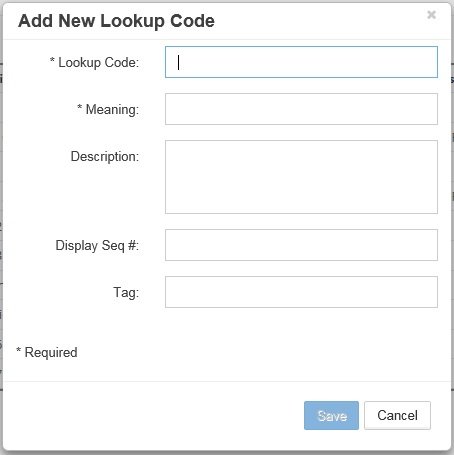
Add New Lookup Code dialog - Click Save to add the code
Add Multiple Lookup codes using File
The Upload Lookup Codes option allows users to load multiple lookup codes in bulk using a .csv template.
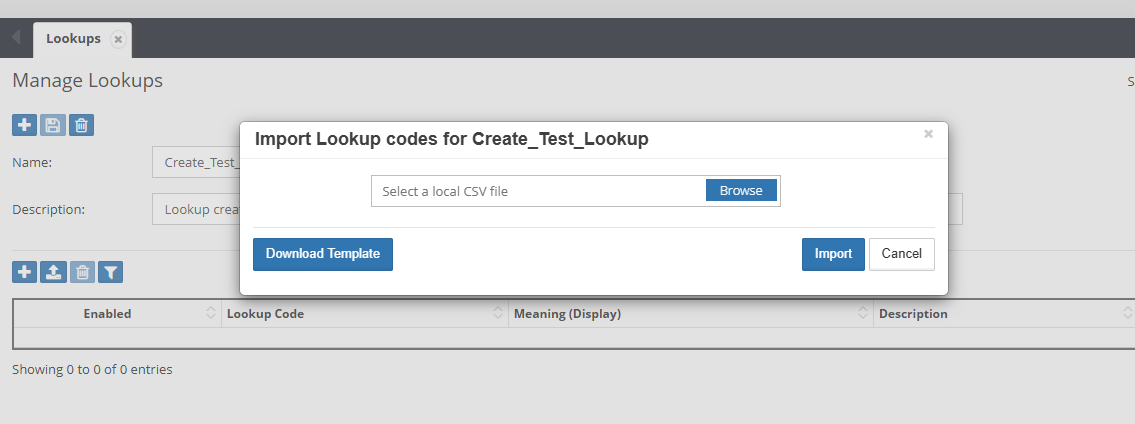
Process:
- Click on the Upload Lookup Code option.
- Download the upload template.
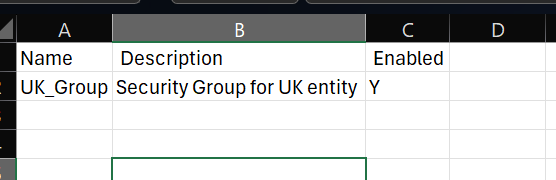
- Populate the template with the required group details.
- Upload the completed file and click Process.
Edit Lookup Code
- Right-click on a code row
- Select Properties from menu
- Modify fields as needed
- Click Save to apply changes
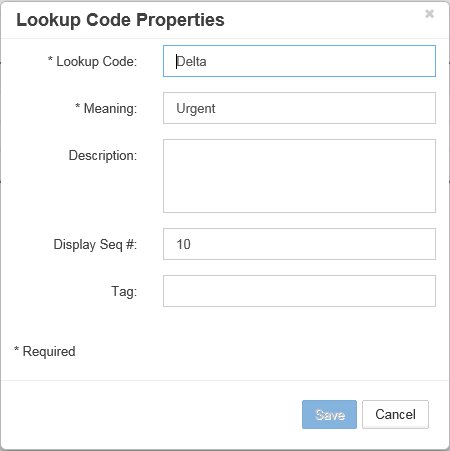
Lookup Code Properties dialog
Delete Lookup Code
- Right-click on a code row
- Select Delete from menu
- Confirm deletion
Single Deletion
Only one lookup code can be deleted at a time.
Managing Display Order
Control the sequence of values in dropdowns using Display Seq.#:
- Values are sorted by Display Seq.# (ascending)
- Use increments of 10 for easy reordering
- Example sequence: 10, 20, 30, 40...
System Lookups
EPMware includes seeded lookups that are essential for system operation. These lookups are read-only and cannot be modified or deleted.
Common System Lookups
| Lookup Name | Purpose | Used In |
|---|---|---|
| Workflow Priorities | Request priority levels | Workflows |
| EW_DEPLOYMENT_TYPES | Deployment Type Options | Deployment Manager |
| Workflow Task Actions | Workflow task actions | Workflow Builder |
| EW_HP_DATASTORAGE_OPTIONS | Planning Data Storage Property Options | Property configuration |
| EW_PROPERTY_DISPLAY_TYPES | EPMWARE Properties Display Types | Property configuration |
Read-Only
System lookups are marked as read-only and cannot be edited. They are maintained by EPMware and updated through system upgrades.
Viewing System Lookups
While system lookups cannot be modified, you can: - View their values for reference - Understand available options - Use them in configurations - Reference in Logic Builder scripts
Lookup Usage
User Defined Fields (UDFs)
Lookups are commonly used to populate dropdowns in User Defined Fields:
- Navigate to Configuration → Misc → Global Settings
- Select User Defined Settings tab
- Configure UDF with lookup:
Property Configuration
Use lookups for member property values:
- Navigate to Configuration → Properties → Configuration
- Set property Display Type to "List of Values"
- Reference lookup in configuration
Logic Builder Integration
Reference lookup values in scripts:
        SELECT l.LOOKUP_ID, l.NAME, l.DESCRIPTION, c.LOOKUP_CODE, c.MEANING
        FROM ew_lookups l, ew_lookup_codes c
        WHERE l.lookup_id = c.lookup_id
          AND l.name = :lookupName
          AND c.lookup_code = :value
          AND c.enabled = 'Y'
    `;
Common Lookup Examples
Example 1: Business Units
Lookup Name: BUSINESS_UNITS
Description: Company business unit codes
| Code | Meaning | Description | Seq |
|---|---|---|---|
| CORP | Corporate | Corporate headquarters | 10 |
| NA | North America | NA operations | 20 |
| EMEA | Europe, Middle East, Africa | EMEA region | 30 |
| APAC | Asia Pacific | APAC region | 40 |
| LATAM | Latin America | LATAM region | 50 |
Example 2: Cost Center Types
Lookup Name: COST_CENTER_TYPES
Description: Types of cost centers
Codes:
| Code | Meaning | Description | Seq |
|---|---|---|---|
| DIRECT | Direct | Direct cost center | 10 |
| INDIRECT | Indirect | Indirect/overhead | 20 |
| ADMIN | Administrative | Admin support | 30 |
| CAPITAL | Capital | Capital projects | 40 |
Best Practices
1. Naming Conventions
- Lookup Names: Use UPPERCASE_WITH_UNDERSCORES
- Descriptive Names: Make purpose clear (e.g., REQUEST_PRIORITY not just PRIORITY)
- Avoid Spaces: Never use spaces in lookup names
- Consistent Prefixes: Group related lookups (e.g., FIN_ACCOUNT_TYPES, FIN_CURRENCIES)
2. Code Management
- Meaningful Codes: Use recognizable abbreviations
- Consistent Format: Maintain consistent code patterns
- Sequence Gaps: Use increments of 10 for flexibility
- Description Usage: Provide helpful descriptions for complex codes
3. Performance
- Limit Size: Keep lookups under 500 values
- Enable/Disable: Use enabled flag instead of deleting
- Optimize Queries: Index lookup tables properly
- Cache Frequently Used: Consider caching static lookups
4. Maintenance
- Document Purpose: Clear descriptions for all lookups
- Regular Review: Audit lookups quarterly
- Archive Unused: Disable rather than delete old codes
- Version Control: Track changes through migration
Integration Points
Where Lookups Are Used
| Module | Usage | Configuration Location |
|---|---|---|
| User Defined Fields | Dropdown values | Global Settings → UDF Settings |
| Property Configuration | Property LOVs | Configuration → Properties |
| Workflow Builder | Priority levels | Workflow → Builder |
| Email Templates | Template selection | Configuration → Email |
| Reports | Filter options | Audit → Reports |
| Logic Builder | Validation lists | Logic Builder scripts |
Dynamic vs. Static Lookups
Static Lookups - Defined in Lookups module: - Fixed set of values - Maintained by administrators - Version controlled - Cached for performance
Dynamic Lookups - Generated via SQL: - Values from queries - Real-time data - Context-sensitive - Used in LOV SQL
Troubleshooting
Common Issues
| Issue | Cause | Solution |
|---|---|---|
| Lookup not appearing in dropdown | Not enabled or wrong name | Verify enabled flag and exact name match |
| Values in wrong order | Display sequence incorrect | Adjust Display Seq.# values |
| Cannot edit lookup | System lookup | System lookups are read-only |
| Duplicate values showing | Multiple enabled codes with same meaning | Check for duplicate enabled codes |
| Lookup deletion fails | Referenced in configuration | Remove all references before deleting |
Validation Queries
Test lookup configuration:
-- Check lookup exists and is active
SELECT l.name, l.description, COUNT(c.lookup_code) code_count
FROM ew_lookups l
LEFT JOIN ew_lookup_codes c ON l.lookup_id = c.lookup_id
WHERE l.name = 'YOUR_LOOKUP_NAME'
  AND c.enabled = 'Y'
GROUP BY l.name, l.description;

-- View all codes for a lookup
SELECT lookup_code, meaning, description, display_seq_num
FROM ew_lookup_codes c
JOIN ew_lookups l ON l.lookup_id = c.lookup_id
WHERE l.name = 'YOUR_LOOKUP_NAME'
  AND c.enabled = 'Y'
ORDER BY display_seq_num;
Migration Considerations
When migrating lookups between environments:
- Export Order:
- Export lookups before configurations that reference them
-
Include both header and codes
-
Dependencies:
- Check UDF configurations
- Verify property configurations
-
Review Logic Builder scripts
-
Environment-Specific:
- Some lookups may be environment-specific
- Document which lookups vary by environment
Related Topics
- User Defined Settings - Configure UDFs with lookups
- Property Configuration - Use lookups in properties
- Logic Builder - Reference lookups in scripts
- Adminstration - Adminstration -Services and Migration
- Workflow Builder - Priority lookups in workflows