Oracle EPM Cloud Configuration
This appendix provides detailed configuration requirements for linking EPMware to Oracle EPM Cloud applications, enabling hierarchy import and direct metadata deployment.
Overview
EPMware integrates seamlessly with Oracle EPM Cloud applications through REST APIs, providing automated metadata management across your cloud EPM landscape. This guide covers configuration for PBCS, FCCS, TRCS, ARCS, and PCMCS applications.
Supported Applications
📊 PBCS
Planning & Budgeting Cloud Service
Full planning application support with dimension management
💰 FCCS
Financial Consolidation & Close Cloud Service
Consolidation hierarchies and close management
📋 TRCS
Tax Reporting Cloud Service
Tax provision and reporting hierarchies
✅ ARCS
Account Reconciliation Cloud Service
Reconciliation profiles and hierarchies
📈 PCMCS
Profitability & Cost Management Cloud Service
Cost allocation and profitability dimensions
Configuration Workflow
graph LR
    A[Oracle EPM Cloud] --> B[Create Snapshots]
    B --> C[Setup Import Jobs]
    C --> D[Configure EPMware]
    D --> E[Test Integration]
    E --> F[Production Ready]
Step 1: Configure Metadata Import
Create LCM Export Snapshot
Enable EPMware to import metadata from your Oracle EPM Cloud application.
For PBCS/FCCS/TRCS/ARCS
- Access Migration
- Log into Oracle EPM Cloud application
- Navigate to Tools → Migration

Tools menu with Migration option in Oracle EPM Cloud
- Select Application Artifacts
- Click on your application name
- Select all artifacts EXCEPT:
- ❌ Essbase Data
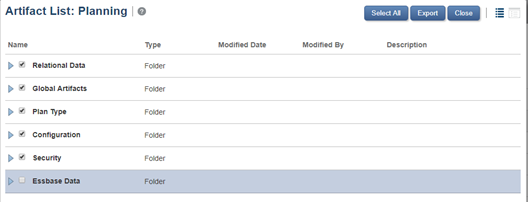
Migration screen showing artifact selection for export
- Create Export
- Click Export icon
- Name:
EW_LCM_EXPORT - Click Export
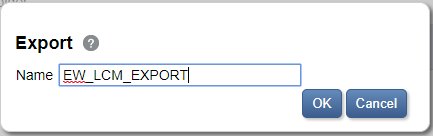
Creating EW_LCM_EXPORT snapshot for EPMware integration
Snapshot Name
The export name MUST be EW_LCM_EXPORT to match EPMware's default configuration.
For PCMCS
- Navigate to Applications → Migration
- Select your PCMCS application by clicking the hyperlink
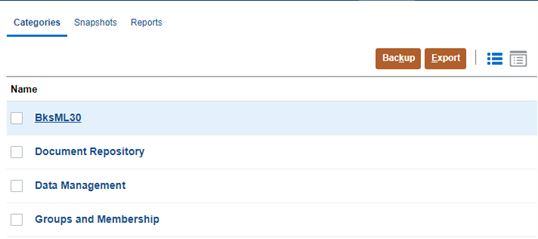
PCMCS application migration interface
- Select all artifacts except Essbase Data
- Click on Export
- Export name:
EW_LCM_EXPORT - This will create the metadata export job that EPMWARE will use to import the PCMCS hierarchies into EPMWARE.
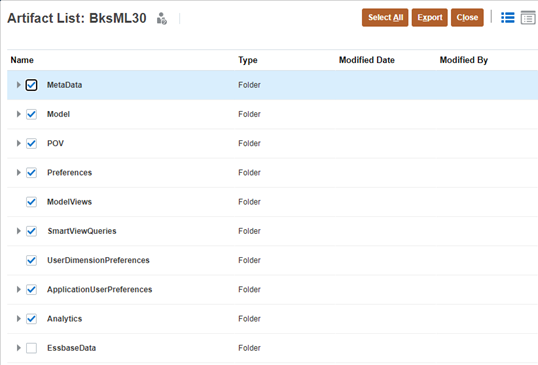
Migration screen showing artifact selection for export
Application Properties Reference
Configure these properties in EPMware under Configuration → Applications → Properties:
| Property | Default Value | Description |
|---|---|---|
PBCS_LCM_SNAPSHOT_NAME |
EW_LCM_EXPORT | Snapshot name for import |
PBCS_LCM_EXPORT_URL |
Auto-generated | REST API endpoint for export |
PBCS_APP_VERSION |
11.1.2.3.600 | API version (do not modify) |
Step 2: Configure Metadata Deployment
Create Import Jobs
Set up separate import jobs for each dimension managed by EPMware.
Job Creation Process
- Access Dimensions
- Navigate to Application → Overview → Dimensions
- Click Import icon
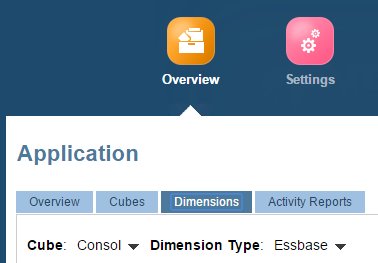
Application overview with Dimensions tab selected
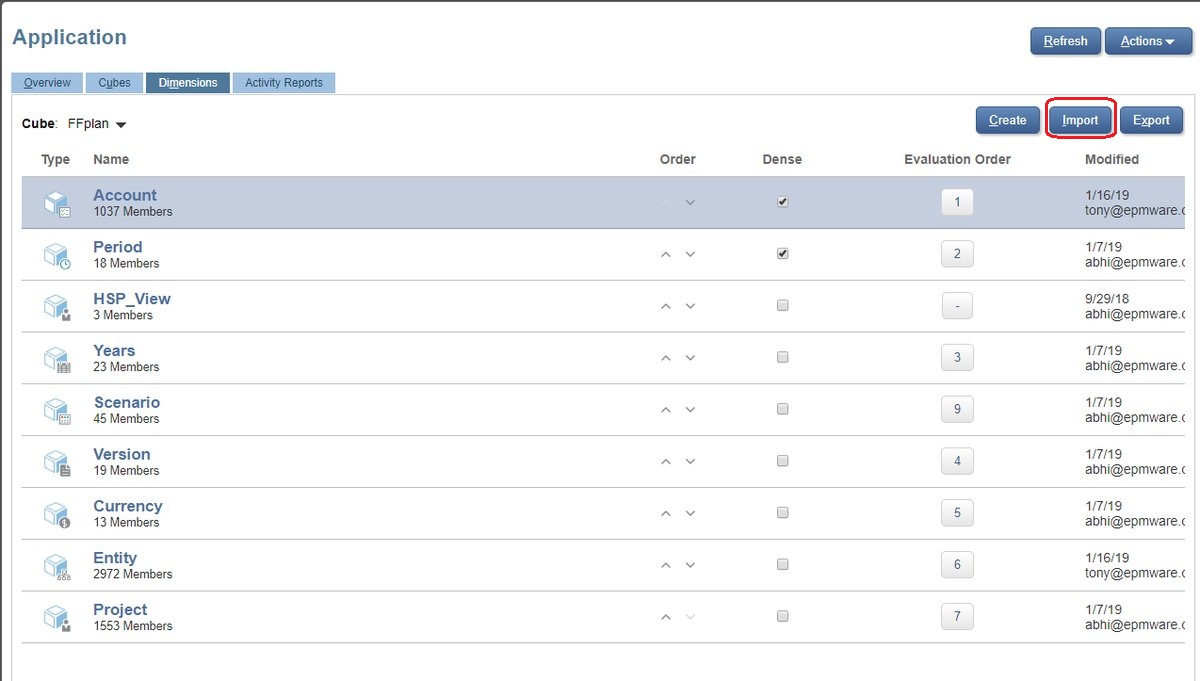
Dimensions import screen
Configure Import Job
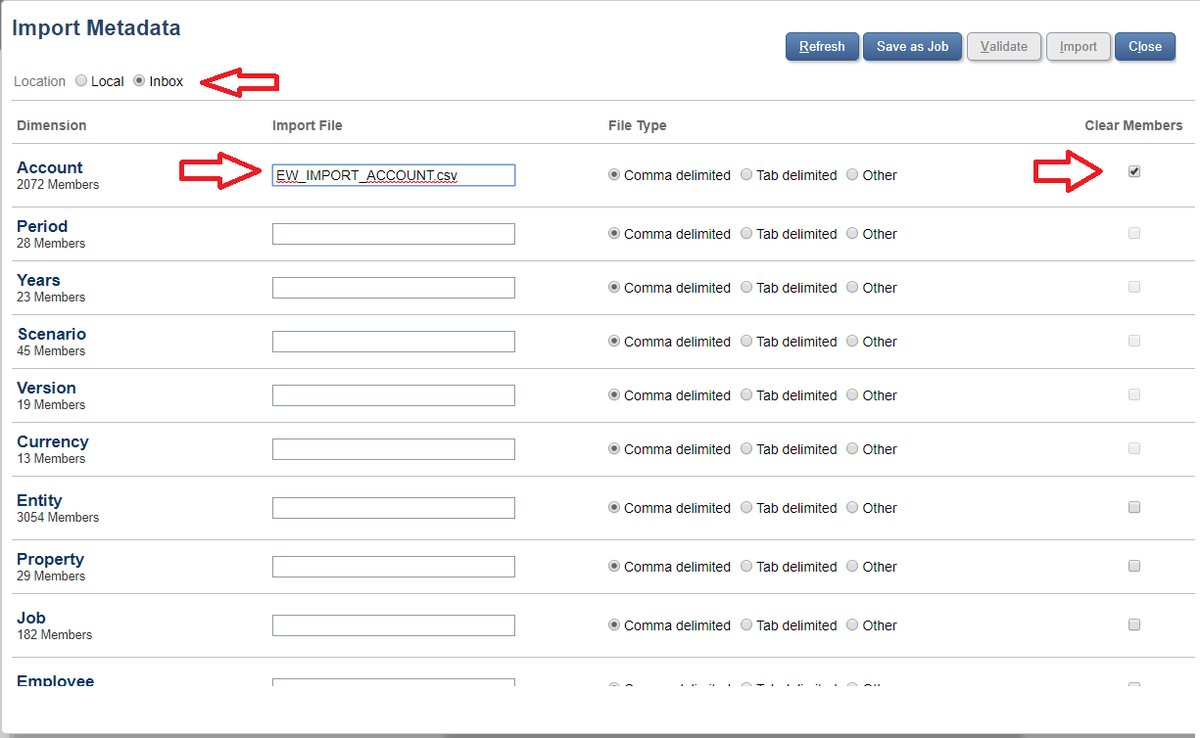
Import metadata screen
- Save as Job
- Job Name:
EW_IMPORT_<DIMENSION_NAME> - Enable "Refresh Database if Import Metadata is successful"
- Save
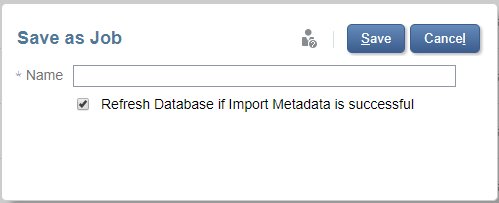
Save as Job dialog with EW_IMPORT naming convention
Import Jobs
Repeat this process for each Dimension that will be managed in EPMware.
| Setting | Value | Required |
|---|---|---|
| Location | Inbox | ✅ |
| Clear Members | Checked | ✅ |
| Import File | See naming convention | ✅ |
| Refresh Database | Checked | ✅ |
- Click on the Create icon to create and configure the Import Metadata Job.
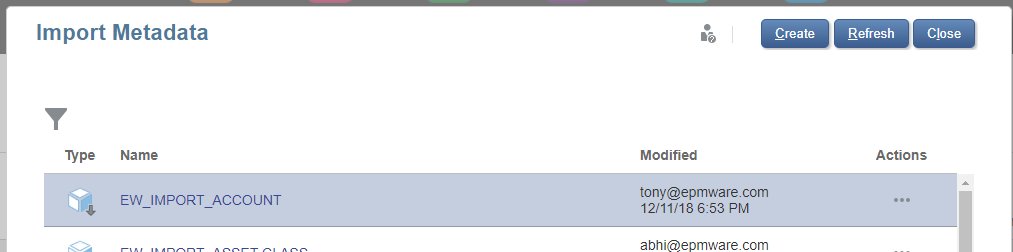
Import metadata job configuration screen
- File Naming Convention
Dimensions: EW_IMPORT_<DIMENSION_NAME>.csv
UDAs:       EW_IMPORT_UDA_<DIMENSION_NAME>.csv
Case Sensitivity
File names are case-sensitive. Use UPPERCASE except for the .csv extension.
Example Import Jobs
Create separate jobs for each dimension:
| Dimension | Import File | Job Name |
|---|---|---|
| Account | EW_IMPORT_ACCOUNT.csv | EW_IMPORT_ACCOUNT |
| Entity | EW_IMPORT_ENTITY.csv | EW_IMPORT_ENTITY |
| Product | EW_IMPORT_PRODUCT.csv | EW_IMPORT_PRODUCT |
| Account UDA | EW_IMPORT_UDA_ACCOUNT.csv | EW_IMPORT_UDA_ACCOUNT |
PCMCS
For PCMCS, no configuration is required for Deployments from EPMWARE. The Deployment integration is accomplished by the EPMWARE Agent.
Quick Reference
REST API Endpoints
| Operation | Endpoint Pattern |
|---|---|
| LCM Export | /interop/rest/{version}/applicationsnapshots/{snapshot}/migration?q={type:export} |
| Job Execution | /HyperionPlanning/rest/v3/applications/{app}/jobs |
| Job Status | /HyperionPlanning/rest/v3/applications/{app}/jobs/{jobId} |
Required Oracle Roles
| Role | Required For |
|---|---|
| Service Administrator | Full integration |
| Power User | Limited deployment |
| User | Read-only access |
Additional Resources
Related Topics
Oracle Documentation
Support
For Oracle EPM Cloud integration assistance:
📧 EPMware Support: support@epmware.com
📞 Phone: 408-614-0166
🌐 Oracle Support: support.oracle.com
Monthly Updates
Oracle EPM Cloud receives monthly updates. Test your integration after each update cycle to ensure compatibility.