AWS S3 Bucket Integration
This guide describes how to configure AWS IAM access when a customer wants EPMware to upload files to an AWS S3 bucket.
Overview
When customers want EPMware to upload files to their Amazon S3 bucket, IAM permissions must be configured between the customer AWS account and the EPMware AWS account.
Two approaches are supported.
| Approach | Description | Recommended |
|---|---|---|
| Standard Approach | Customer creates an IAM Role in their AWS account and grants account permissions to the EPMware AWS Account. For this, EPMWARE will need to provide you with an AWS Account ID of EPMWARE. Customers will then share the Role ARN and bucket details with EPMWARE team. | ✅ Yes |
| Alternative Approach | EPMWARE team will create a role in AWS account, but since the bucket is in customer account, customers will need to update their bucket policy to allow that EPMWARE Roles to upload files. | Supported |
Standard Approach (Recommended)
- Customer creates an IAM Role in their AWS account.
- EPMware provides its AWS Account ID.
- Customer grants trust to the EPMware AWS Account.
- Customer shares:
- Role ARN
- Bucket Name
- Bucket Region
- EPMware assumes the customer role and uploads files to the S3 bucket.
Alternative Approach
In this approach, EPMware creates an IAM Role in its AWS account and the customer updates the S3 bucket policy to allow that role access.
Steps
- Log in to the EPMware AWS Account.
- Navigate to IAM → Roles
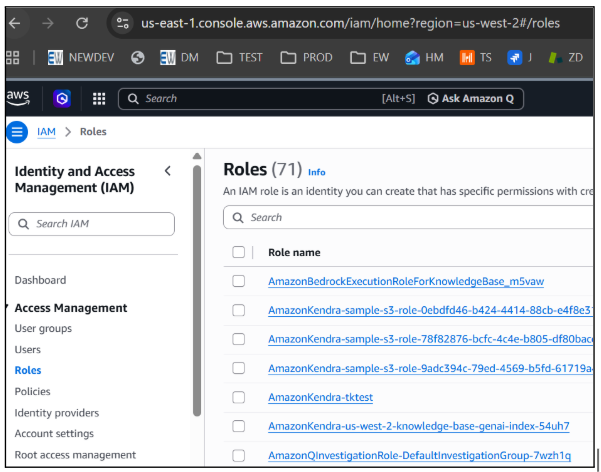
- Click Create Role to creare new role.
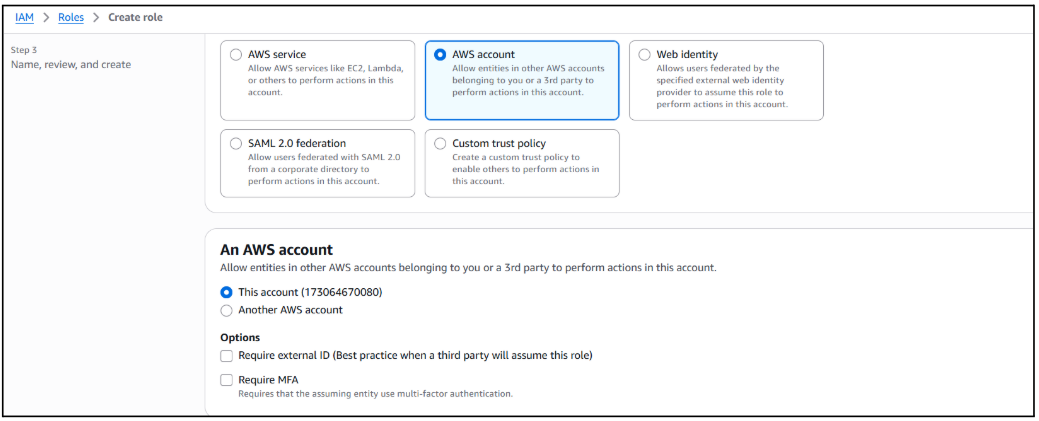
- Use default options for Permissions ( do not select any)
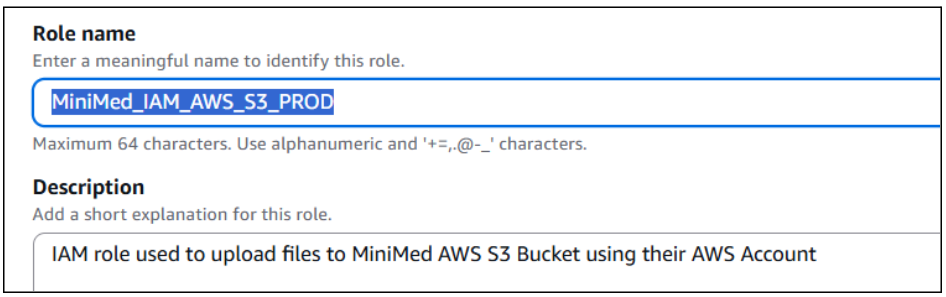
- Assign Role name. Assign an appropriate name so as to identify the customer name and environment.
For Example,<CustomerName>_IAM_AWS_S3_PROD
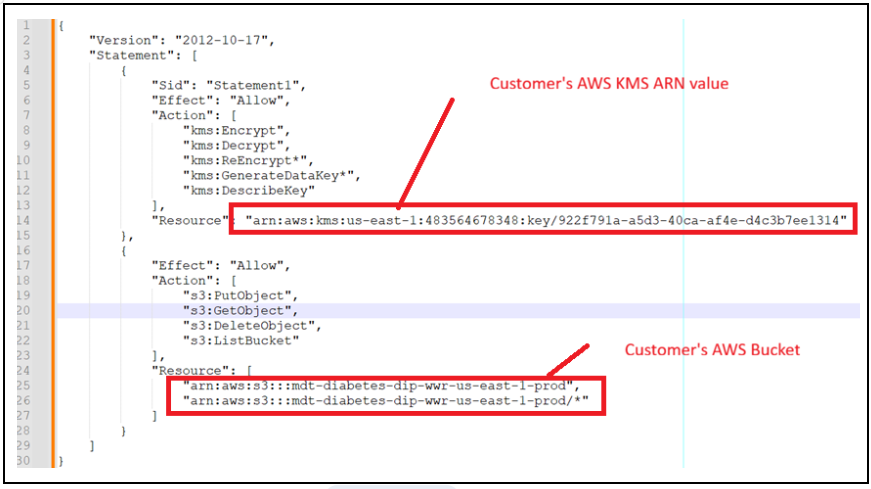
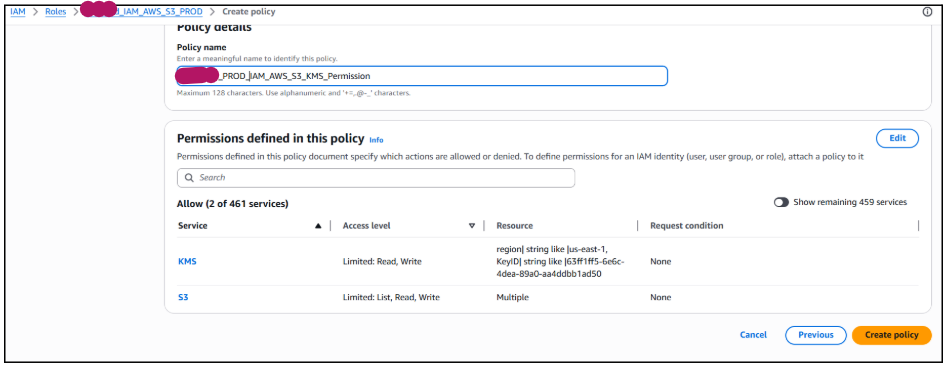
- Create Permissions Policy (Customer Inline Policy)
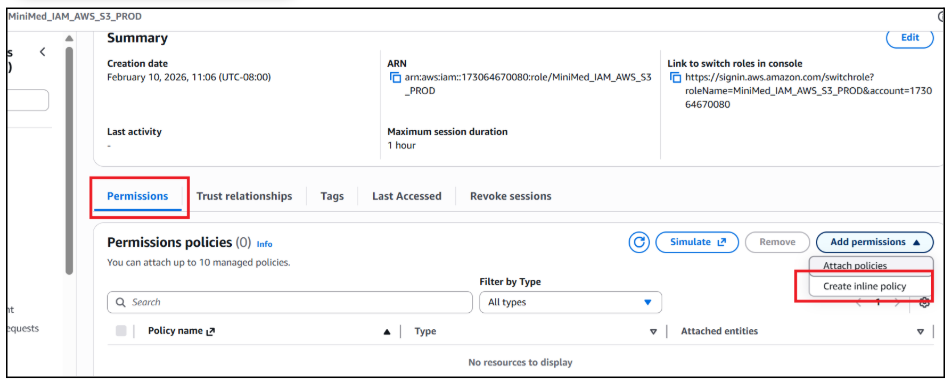
- Select
JSONformat to add policy details (This can be done after the customer provides their details).Example
- Provide a name to the policy. Like roles, assign a name that designates customer name and environment.
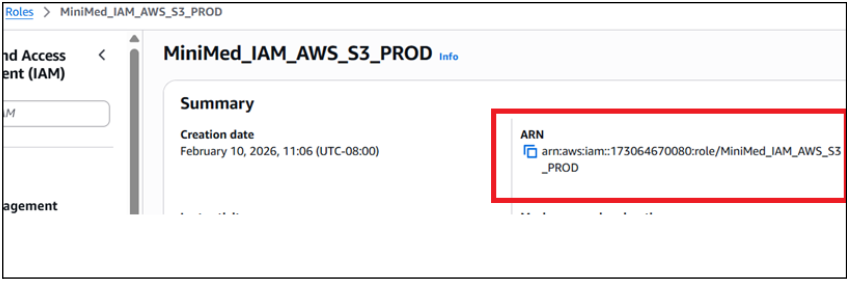
- Provide EPMWARE ARN.
Information Required from Customer
The customer should provide:
- S3 Bucket Name
- AWS Region
- Bucket Policy requirements
- (Optional) Folder/Prefix restrictions
Information Shared by EPMware
EPMware provides:
- AWS Account ID (Standard Approach)
- IAM Role ARN (Alternative Approach)
Best Practices
- Use separate IAM Roles for DEV, TEST, and PROD.
- Follow least-privilege access.
- Avoid wildcard permissions where possible.
- Use descriptive naming conventions.
- Review IAM permissions periodically.
Summary
The Standard Approach is recommended because customers retain ownership of IAM roles while allowing EPMware to assume the required permissions.
The Alternative Approach should be used only when customer policies require EPMware to manage the IAM Role and the customer is able to update their S3 Bucket Policy accordingly.