Databricks Configuration
This appendix provides detailed configuration requirements for linking EPMware to Databricks applications, enabling hierarchy import and direct metadata deployment through REST APIs.
Overview
EPMware integrates with Databricks through REST APIs, providing automated metadata management and deployment capabilities. This guide covers the complete configuration process from initial setup to production deployment.
Prerequisites
Before beginning configuration, ensure you have:
- ✅ Databricks workspace with SQL Warehouse configured
- ✅ Databricks service principal or OAuth credentials (Client ID and Secret Key)
- ✅ Administrative access to EPMware
- ✅ SQL Warehouse ID for metadata queries
- ✅ Network connectivity between EPMware and Databricks
Integration Architecture
graph TD
    A[Databricks SQL Warehouse] -->|REST API| B[EPMware]
    B --> C[Metadata Management]
    C -->|ERP Import| D[Target Applications]
    D --> E[OneStream]
    D --> F[Hyperion]
    D --> G[Other EPM Apps]
EPMware connects to Databricks via REST APIs using OAuth token-based authentication. Metadata is retrieved by executing SQL statements against a Databricks SQL Warehouse and can then be fed into target applications through the ERP Import module.
Part 1: Register Application
Create Databricks Application
- Navigate to Configuration → Applications → Configuration
- Click the New Application icon
- Configure the application as follows:
| Field | Value |
|---|---|
| Application Name | DATABRICKS |
| Target Application | DATABRICKS |
| Application Type | DATABRICKS |
| Version | Cloud |
| Deployment | Direct |
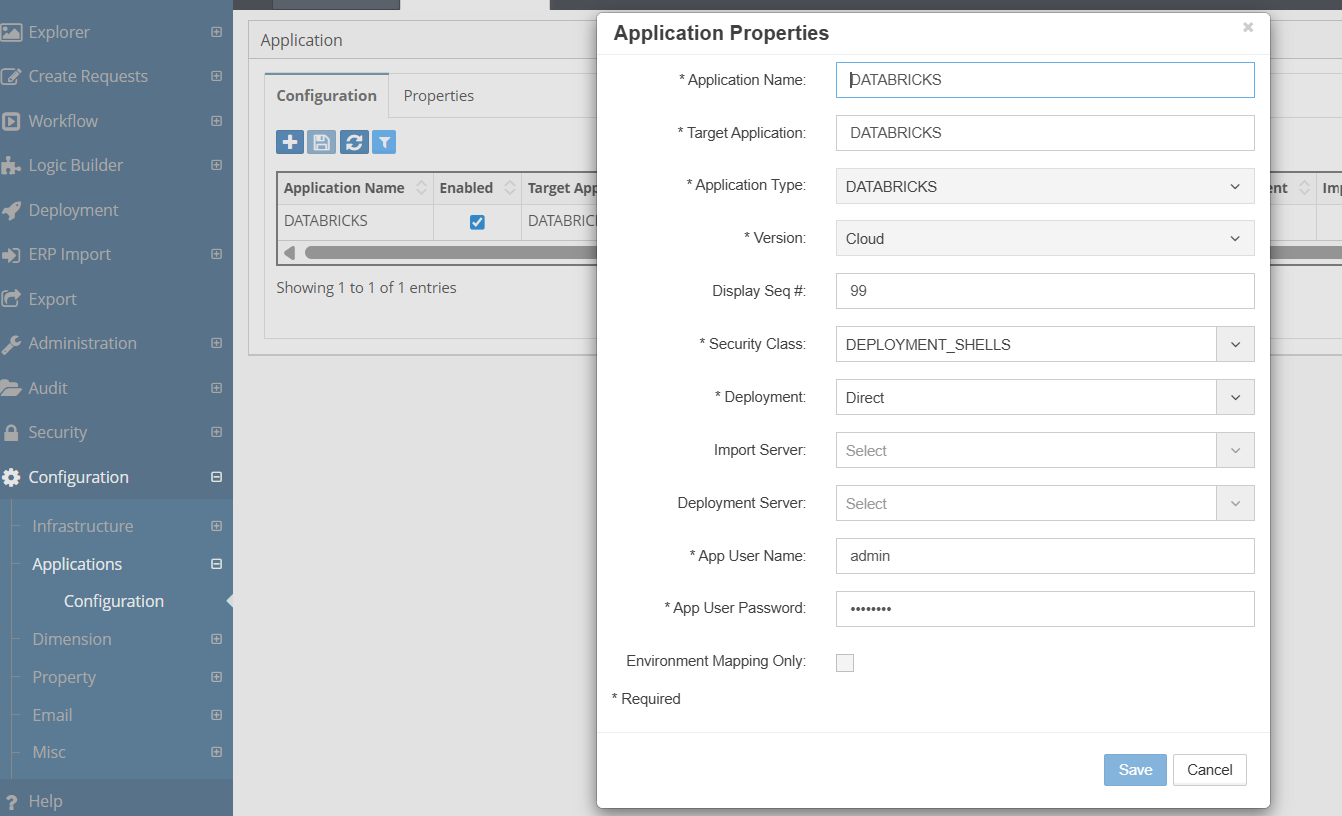
EPMware application registration for Databricks
Application Credentials
The Application Username and Password fields are not used for Databricks authentication. Enter placeholder values (e.g., admin) in these required fields. Actual authentication is handled through the Databricks-specific properties configured in Part 2.
- Click Save to create the application
Part 2: Configure Application Properties
Access Properties
- Navigate to Configuration → Applications → Configuration
- Select the Properties tab
- Choose DATABRICKS from the Application dropdown
- Use the Advanced Filter to filter by Property Name
DATABto display only Databricks-related properties
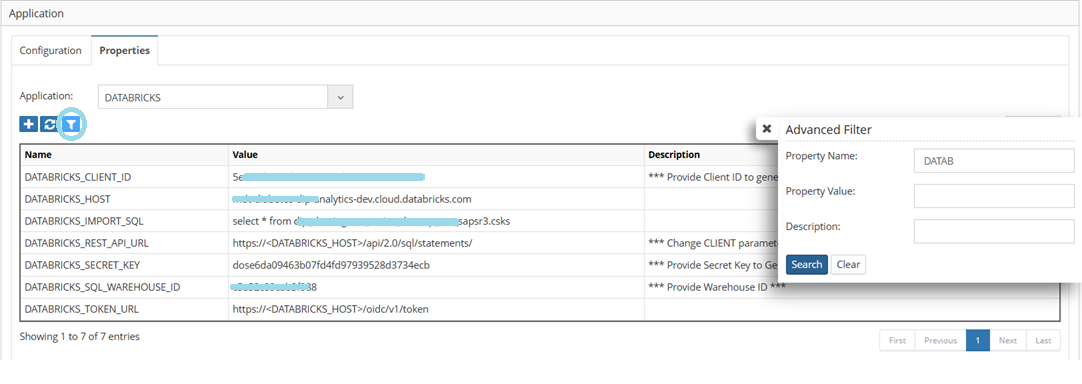
Databricks application properties in EPMware
Required Properties
Configure the following properties to connect to your Databricks environment:
| Property | Description | Required |
|---|---|---|
DATABRICKS_CLIENT_ID |
OAuth Client ID used to generate authentication token | Yes |
DATABRICKS_SECRET_KEY |
OAuth Secret Key used to generate authentication token | Yes |
DATABRICKS_HOST |
Databricks workspace hostname (e.g., epmware-dev.cloud.databricks.com) |
Yes |
DATABRICKS_SQL_WAREHOUSE_ID |
SQL Warehouse ID for executing queries | Yes |
DATABRICKS_IMPORT_SQL |
SQL statement to execute for metadata import (e.g., select * from abc_dev.sap_ecc_sapsr3.csks) |
Yes |
Auto-Generated Properties
The following properties are dynamically generated based on the values configured above. Verify these are populated correctly:
| Property | Generated Value | Description |
|---|---|---|
DATABRICKS_REST_API_URL |
https://<DATABRICKS_HOST>/api/2.0/sql/statements/ |
REST API endpoint for SQL statement execution |
DATABRICKS_TOKEN_URL |
https://<DATABRICKS_HOST>/oidc/v1/token |
OAuth token endpoint for authentication |
Host Name Format
The DATABRICKS_HOST value should be the hostname only, without the https:// prefix. For example: epmware-dev.cloud.databricks.com
Part 3: ERP Import Integration
Use Case
A typical use case for the Databricks integration is to bring metadata from Databricks (using the SQL Warehouse and Import SQL) and feed it into target applications such as OneStream or Hyperion. This is accomplished through EPMware's ERP Import module with a Pre ERP Import Logic Script.
Integration Workflow
graph LR
    A[Databricks] -->|REST API| B[Pre ERP Import Script]
    B -->|Load Data| C[ERP Import Interface Table]
    C -->|Process| D[ERP Import]
    D -->|Update| E[Target Application]
Configure Pre ERP Import Logic Script
- Navigate to Logic Builder
- Create or configure a script with:
- Script Type: ERP Interface Tasks
- Script Name:
_PRE_ERP_DATABRICKS - In the script, use the EPMware API to fetch metadata from the Databricks application and load it into the ERP Import interface table
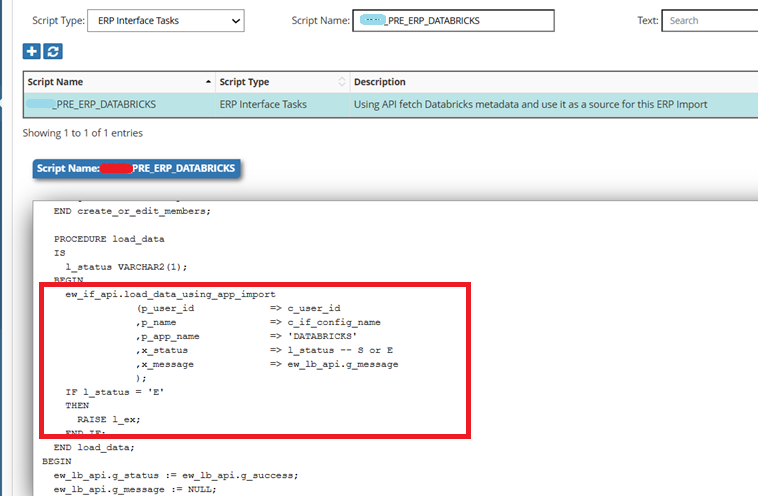
Pre ERP Import Logic Script fetching metadata from Databricks
The key API call in the script loads data from the Databricks application directly into the ERP Import interface:
ew_if_api.load_data_using_app_import
    (p_user_id    => c_user_id
    ,p_name       => c_if_config_name
    ,p_app_name   => 'DATABRICKS'
    ,x_status     => l_status  -- S or E
    ,x_message    => ew_lb_api.g_message
    );
Configure ERP Import
- Navigate to ERP Import → ERP Import Builder
- Create an ERP Import configuration for the target application
- Assign the
_PRE_ERP_DATABRICKSscript as the Pre ERP Import task - Configure dimension mapping as needed
Seamless Integration
This approach makes the integration between Databricks and target applications such as OneStream or Hyperion seamless. The ERP Import module processes the metadata retrieved from Databricks and updates dimensions in the target application automatically.
Testing & Validation
Connection Test
- Verify Databricks properties are configured correctly
- Test the Pre ERP Import script execution
- Confirm metadata is loaded into the interface table
Validation Checklist
- [ ] Databricks application registered in EPMware
- [ ] All required properties configured
- [ ] OAuth credentials are valid
- [ ] SQL Warehouse ID is correct
- [ ] Import SQL returns expected results
- [ ] Pre ERP Import script executes successfully
- [ ] ERP Import processes metadata correctly
- [ ] Target application receives updates
Troubleshooting
Common Issues
| Issue | Cause | Solution |
|---|---|---|
| Authentication Failed | Invalid Client ID or Secret Key | Verify OAuth credentials in Databricks |
| SQL Execution Error | Invalid Import SQL | Test query directly in Databricks SQL editor |
| Warehouse Not Found | Incorrect Warehouse ID | Verify SQL Warehouse ID in Databricks workspace |
| Connection Timeout | Network or firewall issue | Check connectivity between EPMware and Databricks |
| Token URL Error | Incorrect host name | Verify DATABRICKS_HOST does not include https:// |
Debug Checklist
- [ ]
DATABRICKS_HOSTis set correctly (hostname only, no protocol) - [ ]
DATABRICKS_CLIENT_IDandDATABRICKS_SECRET_KEYare valid - [ ]
DATABRICKS_SQL_WAREHOUSE_IDmatches an active warehouse - [ ]
DATABRICKS_IMPORT_SQLexecutes successfully in Databricks - [ ] Auto-generated URLs (
REST_API_URL,TOKEN_URL) are correct - [ ] Network/firewall allows communication on port 443
Log Locations
| Component | Log Location |
|---|---|
| EPMware | Administration → Services → Logs |
| ERP Import | ERP Import → ERP Import Monitor |
| Logic Builder | Logic Builder → Script execution log |
Best Practices
Security
- 🔐 Use a dedicated service principal for API access
- 🔑 Rotate Client ID and Secret Key regularly
- 📝 Enable audit logging for all metadata changes
- 🛡️ Apply least privilege to the Databricks service principal
Performance
- ⚡ Optimize Import SQL queries for performance
- 📦 Limit result sets to required columns and rows
- 🕐 Schedule imports during off-peak hours
- 📊 Monitor SQL Warehouse utilization
Maintenance
- 📋 Document Import SQL statements and their purpose
- 🔄 Test after Databricks workspace upgrades
- 💾 Maintain backup of Logic Builder scripts
- 📚 Keep OAuth credentials current
Quick Reference
Databricks Properties
| Property Category | Properties |
|---|---|
| Authentication | DATABRICKS_CLIENT_ID, DATABRICKS_SECRET_KEY |
| Connection | DATABRICKS_HOST, DATABRICKS_REST_API_URL, DATABRICKS_TOKEN_URL |
| Data Access | DATABRICKS_SQL_WAREHOUSE_ID, DATABRICKS_IMPORT_SQL |
Integration Points
| Component | Purpose |
|---|---|
| Application Registration | Defines Databricks as a source application |
| Application Properties | Stores connection and authentication details |
| Pre ERP Import Script | Fetches metadata from Databricks via API |
| ERP Import | Processes and loads metadata into target applications |
Support Resources
EPMware Support
📧 Email: support@epmware.com
📞 Phone: 408-614-0166
Databricks Resources
- Databricks Documentation
- Databricks SQL Warehouse Guide
- Databricks REST API Reference
Related Documentation
Integration Tip
Always test the Databricks Import SQL in the Databricks SQL editor before configuring it in EPMware. This ensures the query returns the expected results and performs well before integrating it into the metadata pipeline.